How to Update Material Pricing in Estimating Software

A price change should update your estimate, not trigger a line-by-line cleanup. Learning how to update material pricing in estimating software starts with exporting the material list, applying supplier or negotiated price changes in bulk, then importing the revised file. Keep item identifiers and units consistent, and review the imported prices before using them in a bid.
It’s easy to see why estimators want a faster process: material costs shift, and outdated figures can leave an estimate out of step with current pricing. This guide walks through the practical workflow, from preparing a price file and making bulk adjustments to re-importing the data and checking the results. You’ll also learn what to do when your software uses a different import format, when pricing needs to be specific to a job, and how electrical estimating tools can help keep wire and conduit costs current. The goal is a repeatable update process that saves manual effort while giving you a clearer basis for your next estimate.
Key Takeaways
- Apply supplier or negotiated price changes across a material list in bulk to reduce repetitive edits.
- Preserve item identifiers, units, and other required fields so updated prices map to the correct materials when imported.
- Choose an update rhythm that reflects supplier price changes and the timing of your estimates and bids.
- Use the import format your estimating software supports, then review the imported data before relying on it in a bid.
- For manual database edits, update the intended material records carefully and confirm the revised costs appear correctly in estimates.
Bulk adjustment of material pricing
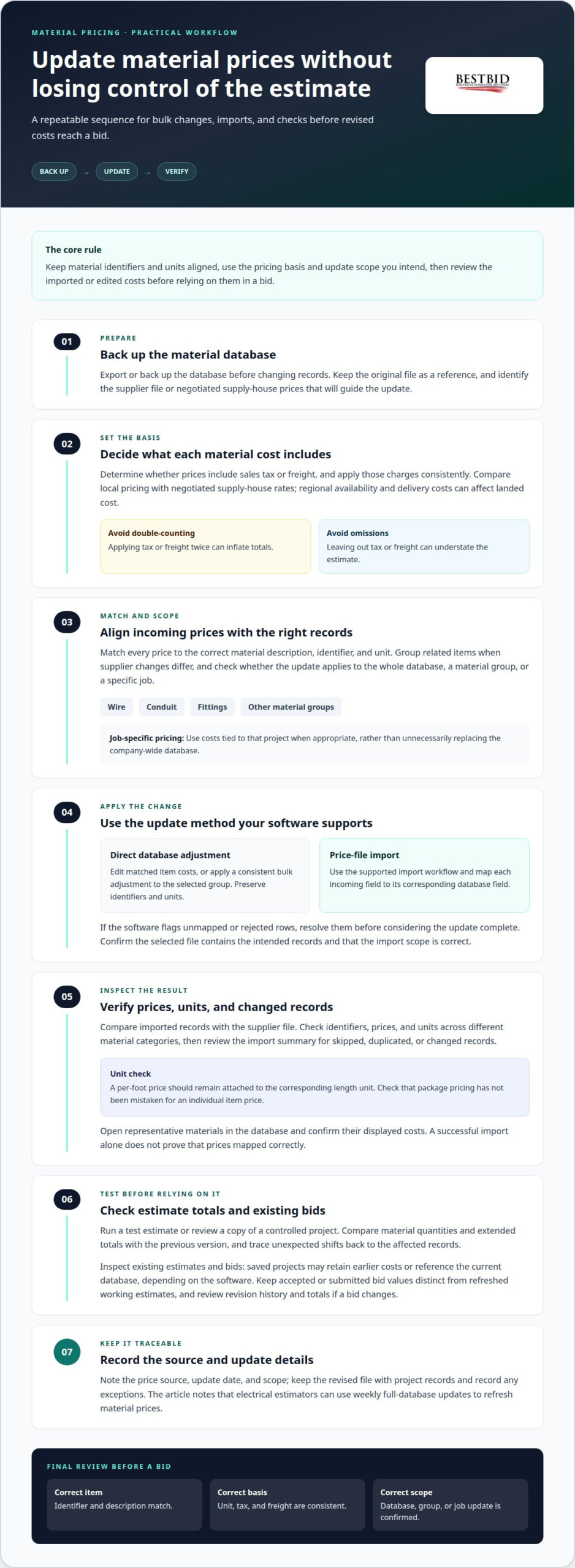
Update related material records together to cut repetitive edits and keep estimates aligned with current costs. Start with a database backup, confirm the price basis, and review affected items before using them in bids.
- Back up or export the material database before changing records. Keep the original as a reference, and identify the supplier file or negotiated supply-house prices that will guide the update. Match each incoming price to the correct material description, item identifier, and unit. A bulk change can affect many estimates, so a mistaken match can spread the wrong cost across a project.
Update material costs in the database
Open the material database and edit the cost for each matched item, or apply a consistent bulk adjustment to the selected group. Preserve units and item identifiers: changing a price without its correct unit can distort quantities and totals. Outdated costs can leave a bid too low to cover purchases or make it less competitive by overstating material costs.
- Group related materials before applying broad changes. Separate wire, conduit, fittings, and other categories when supplier pricing changes differ across them. Electrical estimating software can help update wire and conduit prices, but the adjustment still needs to reflect the relevant supplier terms. For a project-specific estimate, use pricing tied to that job rather than unnecessarily replacing the company-wide database.
Account for tax, freight, and regional pricing
Set the material price basis before applying a bulk update: decide whether each cost includes sales tax or freight, and record those charges consistently. Compare local material pricing with the negotiated rates available from your supply house. Regional availability and delivery costs can change the landed cost, so avoid treating a supplier’s base price as the complete project cost.
For each material group, distinguish unit cost from added project charges. Applying tax or freight twice can inflate totals; omitting them can understate the estimate.
- Check the adjustment’s scope before saving. Filter by category, supplier, or job where available, and compare before-and-after totals. Record the price source and update date so estimators know which costs informed a bid.
Review software price-update handling
Use the platform’s supported update method, such as a supplier price import or a direct database adjustment. Some estimating workflows allow job-specific pricing, while others apply changes across a shared material database. Electrical software can support current wire and conduit pricing, but confirm which records the update affects before applying it. Electrical estimating software tools can also connect material costs with takeoff quantities.
After the change, review sample items and project totals before relying on the revised prices. This catches incorrect matches and unintended changes early.
Re-importing updated pricing
Import the revised material file only after matching its fields to the estimating system. Review the imported records, then determine whether existing bids use the new costs.
- Save the updated file somewhere easy to identify, and retain the original export. Use the software’s import workflow to select the revised data, then map each incoming field to its corresponding database field. Material identifiers, descriptions, units, and prices must align. If the system flags unmapped or rejected rows, resolve them before treating the update as complete.
- Choose the correct update scope before confirming the import. A full database update can replace prices broadly, while a narrower selection may suit a specific material group or job. Electrical estimators can use weekly full database updates to refresh material prices. Check whether the chosen file contains the intended records, rather than assuming every import updates only selected materials.
Verify prices and units
Compare imported records with the supplier file, focusing on the material identifier, price, and unit. Confirm that a per-foot price remains attached to the corresponding length unit, and that package pricing hasn’t been mistaken for an individual item price. Review samples from different material categories, then inspect the import summary for skipped, duplicated, or changed records.
After importing, open representative materials in the database and confirm their displayed costs. A successful import alone doesn’t prove the prices mapped correctly.
- Run a test estimate or review a copy of a controlled project before relying on revised costs in active work. Compare material quantities and extended totals with the previous version. If totals shift unexpectedly, trace the affected items to the imported records. This helps distinguish a valid supplier price change from an incorrect field match or unit conversion.
Check effects on existing estimates and bids
Open existing estimates and bids to see whether their material costs reference the current database or retain values captured earlier. Software handles saved estimates differently, so inspect the project records rather than assuming an import rewrites every bid. If a bid changes, review its revision history and totals before issuing it.
Keep accepted or submitted bid values distinct from a refreshed working estimate. Record which pricing version informed each revision so the estimate remains traceable when costs change.
- Finish by recording the import date, file source, and update scope in your estimating workflow. Keep the revised file with the project records, and note any exceptions, such as supplier items that didn’t map. A consistent import record makes the next update easier to compare and helps explain why a later estimate differs. Electrical contractors refining their estimating workflow can explore electrical estimating software as a related resource.
How often should material pricing be updated in construction estimating software?
Set a regular update rhythm, then refresh prices when supplier changes could affect an active estimate. Weekly full-database updates can refresh material prices, while project timing and supplier information guide additional reviews.
- Schedule a weekly review of available material pricing updates. Weekly full-database updates provide a regular opportunity to review changed costs. Treat the schedule as a baseline, not a reason to import a file without checking its scope. Confirm that it covers the materials and suppliers used in current estimates.
- Review supplier notices when prices change between scheduled updates. A new supply-house quote can affect wire, conduit, or other materials before the next full database refresh. Compare the notice with the pricing currently used for the estimate. If a bid is in progress, apply the change to the relevant materials rather than waiting.
- Set the timing around each bid deadline. Before finalizing an estimate, compare its material prices with the latest supplier information for that project. An estimate prepared well before submission may need another review if supplier pricing has changed. Keep the update limited to the bid’s materials and scope so unrelated database records remain untouched.
- Review negotiated supply-house pricing whenever its terms change. Negotiated prices can differ from broader material database values, so keep the pricing basis clear for each project. If the supplier provides an updated job quote, apply that information to the job-specific estimate. Avoid replacing shared database costs when only one project’s pricing has changed.
- Prioritize materials directly affected by supplier price changes. For an electrical estimate, review wire and conduit costs against current supplier information before completing the takeoff pricing. Material categories can change at different times, so a single blanket update may miss relevant changes. Update affected categories as needed, then keep the source and date with the estimate.
- Review an estimate again if it remains open while supplier conditions change. Compare current project pricing with the figures used when the estimate began. If costs have moved, revise the affected material entries and recalculate the estimate before sending a bid. Keep the earlier version available to explain changes in the totals.
- Use the same review rhythm across estimating staff. Record when weekly updates are applied, which supplier data informs project-specific pricing, and which estimates need refreshed costs. This gives estimators a shared reference instead of relying on memory. Revisit the process when supplier updates or bid schedules make the current cadence impractical.
A Deloitte report on construction trends indicates that over 60% of contractors experienced project delays or budget overruns specifically due to material price volatility in the previous 24 months. That level of exposure makes a calendar-only routine less reliable: estimates should also be checked when supplier information changes, especially while a bid is still active. Keep the review focused on affected materials and preserve the pricing basis used for each project. A consistent process helps teams distinguish a broad database refresh from a project-specific supplier change and update the estimate before submission.
Which file formats do estimating software systems support for material price updates?
Import formats vary by estimating system, so start with its template or file requirements. Match the supplier’s price file to the required structure before importing records.
- Open the estimating software’s import screen and identify the accepted formats. The system may offer a downloadable template or show required fields, such as item number, description, unit, and price. Use that structure as your guide. Don’t assume a supplier’s file can be imported unchanged just because it opens in a spreadsheet.
- Check whether the importer accepts a comma-separated values file, or CSV. CSV stores tabular data as text and works well for material lists with consistent columns. Confirm that descriptions containing commas stay in the correct field. For example, punctuation in a fitting description shouldn’t shift the unit or price into another column.
- Use an Excel workbook, such as XLSX, only if the software accepts it. Keep the import data on one clearly identified worksheet, with a single header row and consistent entries below. Remove merged cells, formulas, and presentation formatting that could complicate field mapping. If the supplier workbook contains other sheets or calculations, preserve a separate working copy.
- Match the supplier’s column names to the estimating system’s fields before importing. A supplier may label a column “unit cost,” while the software expects “price.” Map both to the same meaning and keep material numbers intact. If the system requires a different structure, copy the relevant supplier data into its template rather than changing unrelated database fields.
- Review number and text formatting in the file. A price stored as text may not import as a numeric value. Check decimal separators, blank cells, leading zeros in item identifiers, and units such as each, foot, or roll. Removing a leading zero, for example, could prevent a supplier code from matching its database record.
- Import a small test file first when the workflow allows it. Include a few distinct materials, such as wire, conduit, and a fitting, to confirm that descriptions, units, and prices land in the intended fields. Check the import results for rejected rows or mapping errors, then correct the file before processing the full material list.
- Keep the original supplier file and final import file with the update record. Note the format used and which template version shaped the columns. If a later supplier file changes its layout, compare its headers with the saved version before importing. This can reveal renamed, reordered, or missing fields before they affect pricing records.
How to manually update material costs in a database?
Manual edits work best when each change is traceable to a specific material and price source. Use these steps to update records without confusing unit costs, project pricing, and shared database values.
- Open the estimating database and locate the material record you intend to change. Search by item number or exact description, then confirm both identify the right item. For example, distinguish similar conduit entries by material type and unit before editing. Don’t change a neighboring record simply because its description looks similar.
- Save a copy of the current database or record the existing value before editing. This gives you a reference if a new price was entered against the wrong item. Note the supplier or quote supporting the change, and record its effective date if provided. Keep that context with your estimating records, not just in memory.
- Open the selected material’s cost field and enter the supplier’s unit price. Preserve the database’s existing unit, such as each, foot, or roll. If the supplier quote uses a different unit, convert the price consistently before saving. Don’t overwrite the unit field to make the new number appear to match.
- Decide whether the updated cost belongs in the shared material database or only in one project. Use the shared record when the new price should inform future estimates. Apply a job-specific cost when a supplier quote or negotiated rate applies only to that project. This prevents a project exception from unintentionally changing prices elsewhere.
- Review related fields after changing the material cost. Check the description, identifier, unit, supplier reference, and any separate tax or freight treatment. For an electrical estimate, make sure a wire price still matches the database’s wire unit. Save the edit only when the record reflects the intended material and pricing basis.
- Reopen the edited record and compare its displayed price with the supplier information. Then use the material in a test estimate or project copy to see how the revised cost affects the total. If the estimate changes unexpectedly, trace the calculation back to the material record and quantity before making further edits.
- Keep a change log with the material identifier, previous and revised costs, source, and project scope. Use that record to explain later estimate revisions or restore an earlier value when needed. Electrical estimators who want support beyond manual database work can explore electrical estimating resources for practical guidance.
Best Bid
Best Bid helps electrical contractors prepare detailed project bids with specialized estimating software and tools. If price updates are difficult to manage alongside takeoffs and bid preparation, Best Bid Next Generation and Best Bid Hybrid Pro provide electrical estimating workflows with built-in on-screen takeoff and automatic conduit and wire length calculations. Accura CADD PDF Draw supports PDF drawing work, while the Online School for Electrical Estimating helps develop estimating skills. For project-specific estimating support, Best Bid also offers Freelance Estimating.
Choose the tools or support that fit your estimating process, and keep supplier pricing organized for each project. Contact Best Bid to discuss your electrical estimating needs and take the next step.
Make pricing updates part of your estimating workflow
Material pricing is more than a database number. It shapes the assumptions your team brings to each bid, so the update process should fit how your estimators work. Knowing how to update material pricing in estimating software is a practical starting point. Next, build a workflow your team can apply consistently as projects and supplier information change.
Consider where your current process creates friction: maintaining material records, applying updated costs to estimates, or organizing project pricing. A conversation can help clarify which estimating tools or support fit your electrical work. Best Bid serves electrical contractors with estimating software and related resources designed for the trade.
If you’re ready to discuss your estimating needs and possible next steps, contact Best Bid for help. Keep refining the process, and make every estimate a more deliberate foundation for your next bid.
Frequently Asked Questions
How do you update material prices in estimating software?
Knowing how to update material pricing in estimating software starts with deciding whether a change applies to the shared database or one project. In Best Bid, material prices are built in, and estimators initiate changes using the “Update Prices” option. Review the affected estimate afterward to confirm the updated costs apply to the intended work. Best Bid software includes unlimited licenses, with no extra charge for additional installations.
How do you import supplier price lists into estimating software?
Import supplier pricing through the estimating software’s supported supplier connection or import workflow. Best Bid supports supplier pricing through NetPricer/NetPak integration, giving electrical estimators a way to bring supplier data into their process. Treat each update as a deliberate pricing change, not an automatic replacement: confirm the supplier and pricing source before applying it. Best Bid software includes unlimited licenses, with no extra charge for additional installations.