Software to Count Fixtures and Outlets from PDF: An Electrical Contractor’s Buying Guide

What if the best software to count fixtures and outlets from PDF plans isn’t the one that promises the most automation? A fast count is useful only when it is accurate, easy to verify, and ready to use in an estimate.
If you’ve counted symbols sheet by sheet, you know how a missed mark, duplicate count, or crowded drawing can affect a takeoff. Automated recognition can save time, but similar symbols and busy backgrounds still need careful review. The right fit depends on your drawings and workflow, not just how quickly a tool produces a number.
This guide compares automated recognition with on-screen counting, explains how to review results for omissions and false matches, and outlines what to look for when carrying quantities into electrical estimating. You’ll also learn how to assess whether counts are organized well enough to verify and use. The goal is a dependable takeoff process, not a black-box number you have to trust.
Key Takeaways
- Compare software to count fixtures and outlets from PDF by how it handles symbol selection, counting, review, and quantity organization, not by automation claims alone.
- Test tools on sample drawings with known counts to see how they handle symbol variations, clutter, and low-quality scans.
- Check whether you can edit counts, group quantities, navigate between sheets, and trace results back to the drawing before relying on them for a bid.
- Choose between automated recognition and on-screen marking based on your plans. Consistent symbols may suit automation, while unusual layouts may call for direct counting.
- Distinguish built-in on-screen takeoff and direct counting in Best Bid electrical estimating software from the automated counting and material takeoff described for DigiCount and DigiCount Takeoff Pro.
What should PDF fixture and outlet counting software do?
PDF fixture and outlet counting software is a digital takeoff tool that identifies electrical symbols on plan sheets and records their quantities. Depending on the workflow, it may detect symbols automatically, let an estimator mark each one on-screen, or combine recognition with manual review. The result is a takeoff quantity, not a priced electrical estimate.
A useful takeoff is more than a project-wide total. Organize quantities by drawing, floor, zone, system, and symbol type so you can trace each number to its location and use it in the right part of an estimate. PDF counting works with digital drawings, but it is not the same as extracting quantities from a coordinated BIM model. For background on that broader process, see Building Information Modeling (BIM).
For a visual overview of digital takeoff software in an estimating workflow, watch this demonstration:
Which electrical symbols should a takeoff workflow handle?
Plan to count the devices specified for the project, such as receptacles, switches, luminaires, and other electrical devices. Check the drawing legend and project specifications to confirm what each symbol represents. If two marks look similar but indicate different device types or configurations, keep them in separate categories. That makes the takeoff easier to review and use in estimating.
What does a count from a PDF include, and exclude?
A count records identified symbols. By itself, it does not price materials, adjust labor, or produce a complete bid. A symbol may not show every installation condition, such as mounting details or requirements explained elsewhere in the documents. Record assumptions, exclusions, and unresolved drawing questions alongside the quantities instead of treating an unclear mark as confirmed scope.
When comparing options, look for a workflow that lets you inspect and organize quantities as well as count them. Best Bid electrical estimating software includes built-in on-screen takeoff and direct screen-based counting. Review its electrical estimating software and takeoff workflow as one example of how PDF quantities can fit into estimating.
How do PDF counting tools find fixtures and outlets, and how should you check them?
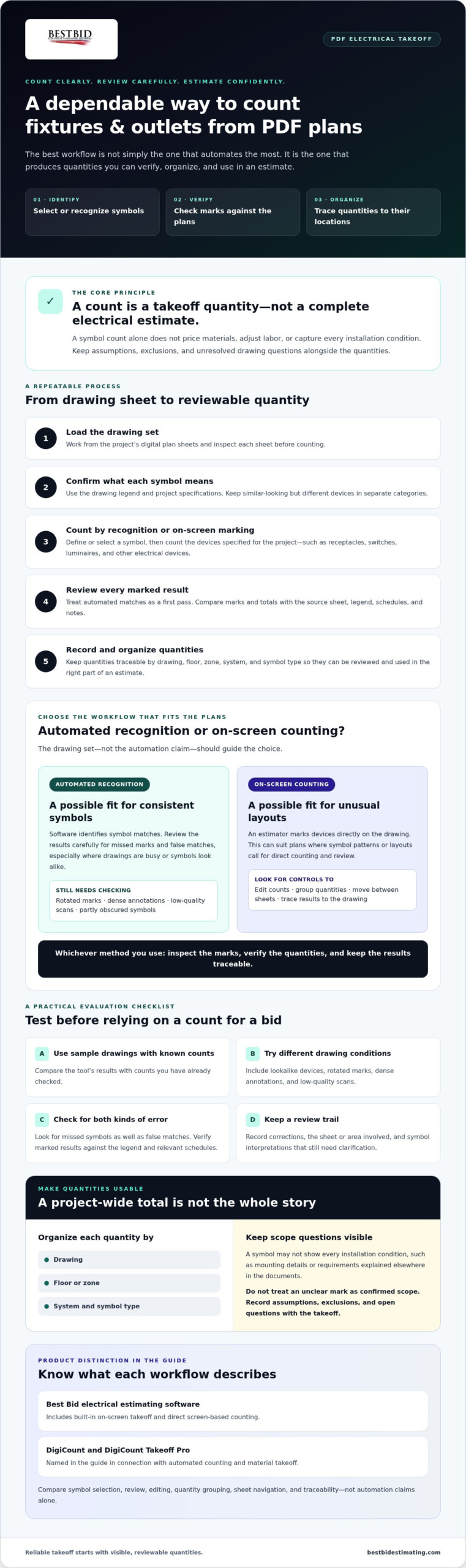
A dependable count follows a repeatable process, whether software recognizes symbols automatically or you mark them on-screen. Load the drawing set, inspect each sheet, select or define the symbol to count, review the marked results, and record quantities by sheet and device category. Treat automated matches as a first pass, not a finished takeoff.
Before a quantity enters a bid, compare the marked results and total with the source sheet, legend, schedules, and notes. This review can help catch false matches, missed symbols, and differences in how devices are specified. The Independent Electrical Contractors’ guidance on effective bid strategies also reinforces the importance of building bids from carefully reviewed project information.
How can estimators catch missed symbols and false matches?
Don’t approve a workflow based on one clean sheet. Test drawings from different areas of a project, including sheets with lookalike devices, rotated marks, dense annotations, and low-quality scans. Compare each highlighted match with the legend and relevant schedule. A symbol buried in a note or partly obscured by another mark can be missed or mistaken for a different item.
Keep a review trail. Record count corrections, the sheet or area where they occurred, and any symbol interpretations that still need clarification. Another estimator can then follow the reasoning instead of inheriting an unexplained total. With software to count fixtures and outlets from PDF, review controls matter as much as recognition: you need to see what was counted and correct it when the drawing indicates otherwise.
What drawing conditions affect PDF counting?
Inspect the files before counting. A vector-based PDF and a scanned or rasterized page may behave differently in a counting tool. Low legibility, inconsistent sheet organization, and markups can also make review harder.
Check that the drawing set is complete and each sheet is clearly identified. Confirm file support with the software provider rather than assuming every PDF will behave the same way.
Keep counting separate from measuring. A symbol count records devices; measuring a run or other distance requires a confirmed drawing scale. Verify the scale on the relevant sheet before measuring.
Also confirm that the team is using the current drawing set. Compare revisions and identify changed or superseded sheets before combining quantities. If a revision changes a device’s location or type, update the affected count and document the change. To explore electrical estimating tools and takeoff workflows, visit Best Bid’s electrical estimating resources.
Automated symbol recognition or on-screen counting: which PDF workflow fits your bid?
There isn’t one best way to count every electrical plan. Automated recognition can speed up repetitive counts when symbols are consistent, while click-to-count marking gives the estimator direct control over each selection. The better fit depends on the drawings, how easily results can be reviewed, and what happens to quantities after takeoff.
Compare workflows across four practical points:
- Automated recognition: Can it identify the symbols on your plans, and can you inspect each match?
- Click-to-count marking: Can you mark symbols directly on the sheet and keep each count tied to its location?
- Review controls: Can you correct false matches or omissions and see which quantities changed?
- Estimating workflow: Can you organize quantities for estimating without re-entering them or losing track?
These are buying criteria, not guarantees of accuracy. Drawing quality, symbol consistency, and a clear review process all affect whether a count is dependable. Test representative sheets and count categories before choosing software to count fixtures and outlets from PDF plans.
When does automated counting make sense for electrical plans?
Automated recognition may suit a project with many sheets that repeat a consistent set of symbols. It can help surface likely matches across those drawings, but you still need to check what the software recognized. Confirm that it can handle the symbols and drawing format in your bid package, then review both missed devices and false positives. A tool that makes matches visible and editable is easier to verify than one that presents only a total.
When is direct on-screen counting or takeoff a better fit?
Direct marking can be practical when symbols vary, a plan is unusual, or you want close visual control over each mark. Look for counts that stay organized by sheet and device type so you can review totals without losing their drawing context. Electrical estimating tools may include on-screen takeoff as part of the estimating workflow. Check how quantities carry forward and whether transfer requires duplicate data entry.
General-purpose PDF takeoff tools may offer counting and measurement features, but electrical contractors should also assess how well a workflow reflects electrical bid categories and estimating needs. Best Bid electrical estimating software includes built-in on-screen takeoff and direct screen-based counting. Separately, automated counting and material takeoff are described for DigiCount and DigiCount Takeoff Pro. These are distinct workflows, so verify the current capabilities of the product you’re considering rather than assuming every tool uses the same method.
Run the same sample drawings through the workflows you’re considering. Compare review time, how straightforward it is to make corrections, and how readily you can use the final quantities in an estimate. Choose a process your team can check and repeat, not simply the one that produces a count first.
Download as HTML
How to evaluate PDF fixture-counting software before using it on a live bid
A product demonstration should show more than a tool producing a count. Test it with sample PDFs where you already know the fixture and outlet quantities, then compare the results with your verified takeoff. Include a dense sheet and one with similar-looking symbols. This shows how the workflow handles realistic drawing conditions, not just an easy example.
Use the same checklist for each option:
- Symbol setup: Can you define or select the device types used on your plans?
- Count editing: Can an estimator correct a missed symbol or false match and confirm the revised total?
- Sheet navigation: Can you find drawings and return to marked locations without losing context?
- Quantity grouping: Can you review counts by sheet, floor, zone, or device category?
- Auditability: Can another estimator see how quantities were produced and what changed?
- Handoff: Can you organize results for estimating, spreadsheets, or project documentation without avoidable re-entry?
What should a software trial or product demonstration prove?
Ask the vendor to demonstrate the full estimator workflow: set up a symbol, count it, inspect the marked results, make a correction, and organize the quantity. Use representative plans from your work if possible. Confirm supported files, export options, and revision handling directly with the vendor. Don’t assume compatibility or a particular handoff method based on a feature label.
Record the test results. Note where counts differ from your known quantities, how easily you can find and fix the differences, and whether the final record is clear enough for a second reviewer. This makes comparisons more useful than relying on a polished demonstration alone.
Can the takeoff quantities become a usable electrical estimate?
A count becomes valuable to a bid when it fits the estimating process. Check whether quantities can be categorized for material and labor estimating, reviewed before pricing, and carried into clear bid documentation. Ask how pricing updates are handled and whether quantities transfer directly or require manual re-entry. Evaluate the workflow against your team’s estimating process.
Best Bid electrical estimating software includes built-in on-screen takeoff. Contractors comparing takeoff and estimating needs can review the electrical estimating software overview. You can also explore Best Bid’s electrical estimating resources.
Best Bid options for counting fixtures and outlets from PDF plans
Best Bid offers electrical estimating software with built-in on-screen takeoff and direct screen-based counting. This approach may suit contractors who want to review quantities on the drawing as part of an electrical estimating workflow. It is distinct from automated symbol recognition, so don’t assume every Best Bid product identifies symbols automatically.
When comparing software to count fixtures and outlets from PDF plans, match the product to the counting method and the work that follows. DigiCount and DigiCount Takeoff Pro are described as providing automated counting and material takeoff. Accura Cadd PDF Draw provides PDF-based drawing tools. Confirm its current functions directly before relying on a specific capability for a bid.
Which Best Bid workflow should a contractor investigate?
Start with your main requirement: connecting takeoff to electrical estimating, automating counts, or working with PDF drawings. Best Bid estimating software is worth investigating when takeoff and estimating need to work together. If automated counting and material takeoff are central, ask about DigiCount and DigiCount Takeoff Pro specifically. If PDF drawing tools are the priority, review Accura Cadd PDF Draw and verify that its current capabilities fit your workflow.
For an estimating workflow with built-in on-screen takeoff, review the Best Bid Next Generation product page. Use the same sample drawings and known quantities you would use to assess any tool, and check how counts can be reviewed and organized before deciding whether the workflow suits your bids.
What should you confirm before selecting a Best Bid product?
Ask which product supports your required counting method, then confirm the details that affect day-to-day use. Discuss supported drawing formats, available export options, and revision handling with Best Bid. Capabilities can vary by product, so verify them rather than assuming all tools share the same functions.
Consider the purchase model as part of the comparison: Best Bid software is offered as a one-time purchase with lifetime updates and support. Confirm the terms and product details that apply to your selection. To get product guidance or explore the company’s electrical estimating offerings, visit Best Bid’s product overview.
Choose a counting workflow you can verify
The right software to count fixtures and outlets from PDF plans should do more than produce a total. Choose a method that suits the drawings, lets you review and organize quantities, and supports a clear handoff into electrical estimating. Test it on representative plans before relying on it for a live bid.
Automated counting and material takeoff are specifically described for DigiCount and DigiCount Takeoff Pro. Best Bid software is offered as a one-time purchase with lifetime updates and support, a model to consider when comparing long-term fit.
Ready to see how an electrical estimating workflow could fit your takeoff process? Explore Best Bid electrical estimating software and compare the options with your project needs.
Frequently Asked Questions
Can software automatically count fixtures and outlets from a PDF?
Yes. Some tools offer automated symbol recognition, while others use on-screen marking or combine both methods. Capabilities vary by product and drawing quality.
Ask for a demonstration using representative electrical plans, then check whether the tool highlights matches, lets estimators correct results, and records quantities by sheet or category. Don’t assume every PDF takeoff or estimating product recognizes symbols automatically. Confirm the workflow before relying on it for a bid.
How accurate is software for counting electrical symbols on PDF plans?
Accuracy depends on the software, symbols, and source drawings, so review every count. Similar marks, crowded annotations, inconsistent legends, and low-quality scans can affect results. Test the tool against known quantities, inspect its marked matches, and compare counts with the drawing legend, schedules, and specifications. Treat automated results as a starting point for verification, not a substitute for checking the plans.
Can I count outlets and fixtures from a scanned PDF?
Possibly, but scanned pages can behave differently from PDFs with selectable vector content, and tools don’t all handle them the same way. Image clarity, skew, contrast, and symbol consistency may affect recognition or navigation. Confirm that the software supports the type of PDF you receive, then test a representative sheet. If automated detection struggles, ask whether you can mark symbols on-screen, adjust counts, and retain a reviewable takeoff record.
What electrical items should I count on PDF drawings?
Count the devices required by the project scope and drawing set, such as receptacles, switches, luminaires, and other specified items. Use the legend and specifications to interpret symbols, and separate similar-looking marks when the documents define them as different devices. A symbol count alone may not capture all material, labor, routing, or installation requirements. Check schedules and notes, and document assumptions or unresolved questions before finalizing quantities.
Can PDF fixture counts transfer into electrical estimating software?
Some workflows can transfer or export quantities, but available formats and integrations vary by product. Before choosing, confirm how counts are grouped, what drawing context or category information is retained, and whether the receiving estimating workflow requires manual cleanup. Ask for a demonstration that follows quantities from the plan through review and into estimate preparation. This can reveal duplicate data entry or missing information before the tool becomes part of your bidding process.
Is built-in on-screen takeoff different from automatic symbol counting?
Yes. On-screen takeoff means working with counts or measurements directly on a drawing; automatic symbol counting attempts to identify matching marks. A product may offer one method without the other, so verify the capabilities of the specific tool. Automated counting and material takeoff are described for DigiCount and DigiCount Takeoff Pro, not for every Best Bid product.
What should I test before buying PDF counting software?
Test representative drawings, including common symbols, lookalike marks, and a dense sheet. Compare results with known quantities, then try editing counts, grouping items, navigating between sheets, and reviewing the takeoff record. Confirm supported file types, export options, and revision handling directly with the vendor.
Ask what training and support are available. A realistic test shows whether the workflow fits your bids better than an automation claim or feature list alone.